

📋 Guest Registration — Collect Guest Info Before They Explore
What is the guest registration widget?
The guest registration widget is a form that appears before guests access your guidebook. It lets you collect key details such as name, email, phone, preferred language, country and, optionally, invite guests to opt in for marketing communications.
All registered guests appear in your Contacts section.
This widget is never shown to guests arriving via OTA-restricted links (Airbnb, VRBO, Booking.com) — only guests on eligible, unrestricted share links can opt in.
Setting up your privacy policy first 🔐
Before enabling the registration form — especially if you plan to collect emails for marketing — you are legally required to have your own privacy policy. This applies regardless of the size of your operation. A privacy policy tells your guests what data you collect, why, and how it's used.
⚠️ SmoothStay's own privacy policy cannot be used in place of yours. It covers SmoothStay's data practices — not yours as a host. Each host is responsible for their own policy covering the data they collect from guests.
Don't have a website or a privacy policy yet? You don't need a website to get started. Several free tools generate a hosted privacy policy at a public URL you can paste directly into SmoothStay:
Termly — free, generates a hosted URL instantly
iubenda — popular with short-term rental hosts
PrivacyPolicies.com — free, simple setup
Once you have your URL, add it under Settings → Brand → Privacy policy. It will auto-populate across all your registration forms automatically — no need to enter it for each property (although you can have a different one per property).
Enabling guest registration ⚙️
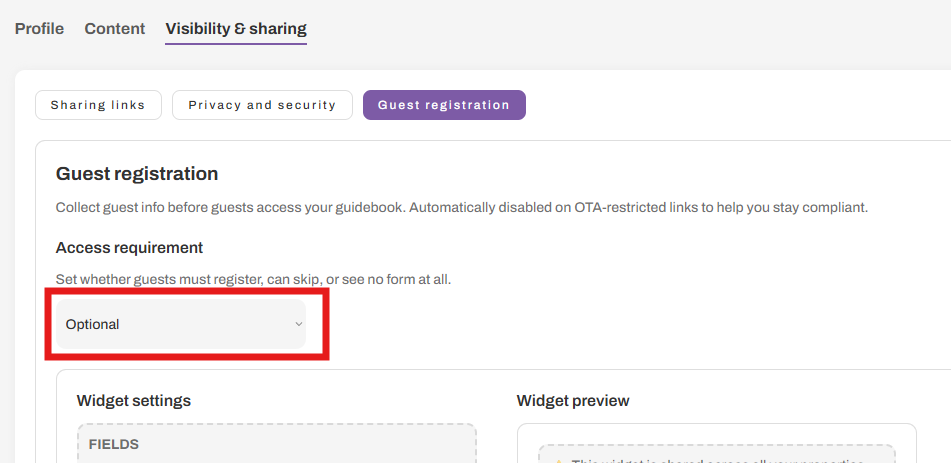
Go to the property you'd like to configure, then navigate to Visibility & sharing → Guest registration.
Choose how registration works for that property:
Off — no form is shown to guests
Optional — guests see the form but can skip it
Required — guests must register before accessing the guidebook
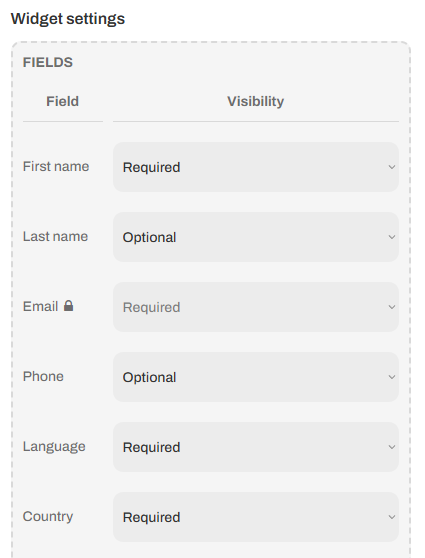
Configuring the widget fields
Under Widget settings → Fields, control which fields appear and whether each one is required, optional, or hidden.
Email is required by default and system locked.
⚠️ This widget is shared across all your properties. Any changes you make here will update every guidebook where it's active.
💡 Tip → Fewer fields = more registrations. Only ask for what you'll actually use.
Marketing opt-in & compliance 📣
Under the Compliance section of the widget settings you can:
Confirm your privacy policy URL — auto-populated from Brand settings if already set
Toggle Opt in marketing to allow guests to subscribe to your communications
Customize the opt-in label guests will see — e.g. "Yes, I'd like to receive updates and offers."
The marketing opt-in checkbox is always unchecked by default. A privacy policy URL is required to activate the widget and the marketing opt-in. If none is set, the widget will not show to guests.
Controlling where the form appears 👁️
Under Visibility → Show for, choose which link types display the registration form:
General share link
Reservation link
Public link
The marketing opt-in is automatically hidden or restricted on OTA-restricted links regardless of this setting. Learn more about OTA compliance →
Where to find registrations
Registered guests appear in Contacts.
Guest activity — page views, article reads, chatbot interactions — is tracked by contact (only if registered) and visible under Content Hub → Analytics.