

Connect SmoothStay to Hospitable
In beta: This integration is still in beta, so expect a few rough edges. Please report any bugs you run into at hello@smoothstay.io.
Connecting Hospitable to SmoothStay means your reservations show up in SmoothStay on their own. Every booking gets its own guidebook and a personalized access link, and that link can go out to your guest automatically inside your Hospitable messages. No copying, no manual entry.
How the sync works
The connection runs in one direction: Hospitable to SmoothStay.
Your properties, reservations, and guest contacts flow into SmoothStay and stay current as bookings come in or change.
Anything you edit inside SmoothStay stays in SmoothStay. It does not write back to Hospitable.
There is one exception. SmoothStay sends each guest's guidebook link back to Hospitable so you can drop it into your messages using the %guidebook% short code. That is the only thing that travels in that direction, and it's covered near the end of this article.
Refer to Hospitable guidelines for using the %guidebook% short code here.
Before you connect
If your PMS message templates currently include a guidebook short or custom code, it will resolve to your SmoothStay guidebook as soon as you connect. So until your content in SmoothStay is ready we suggest you:
Remove the existing guidebook code from your PMS automated messages.
Review and finish your guidebooks in SmoothStay.
Paste the same code back when you're ready — it doesn't change, so there's nothing else to update.
Tip: If you don't use an existing guidebook code in your PMS messages, you’re good to go.
Connect your account
In SmoothStay, go to Settings → Integrations.
Click Connect under Hospitable.
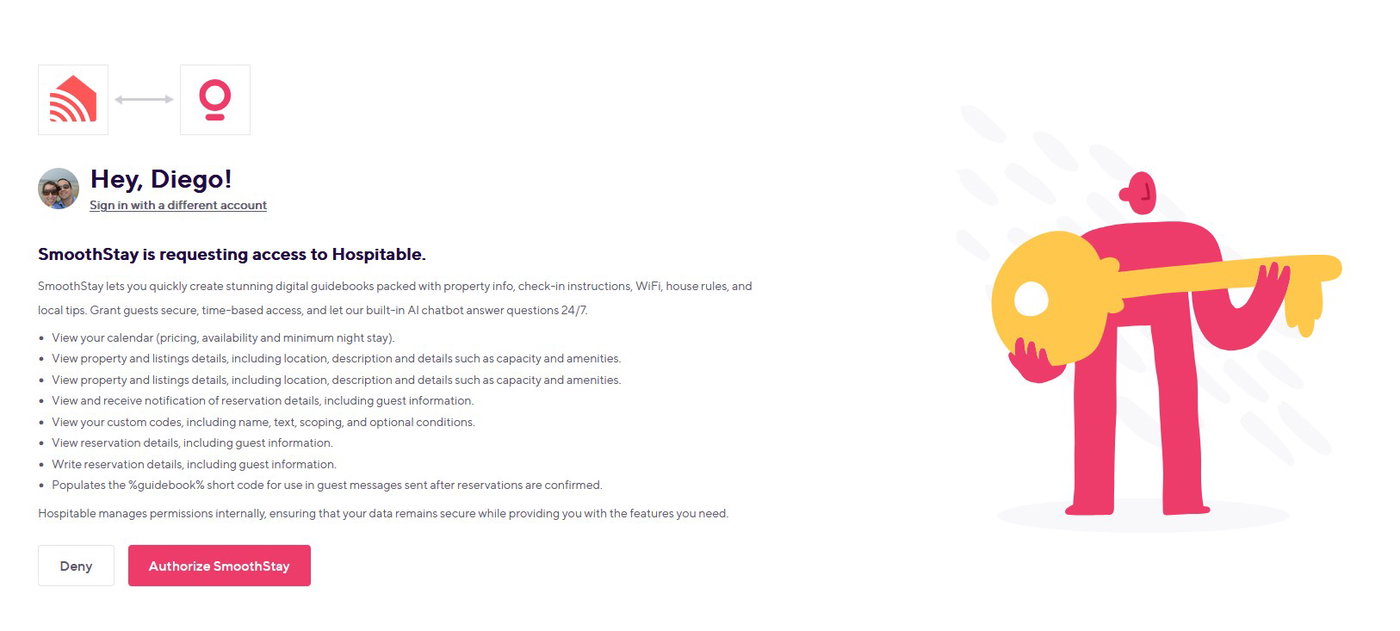
You'll land on a Hospitable page asking you to authorize SmoothStay. Review what's being shared and click Authorize SmoothStay.
Once you authorize, Hospitable sends you back to SmoothStay and the import wizard opens automatically.
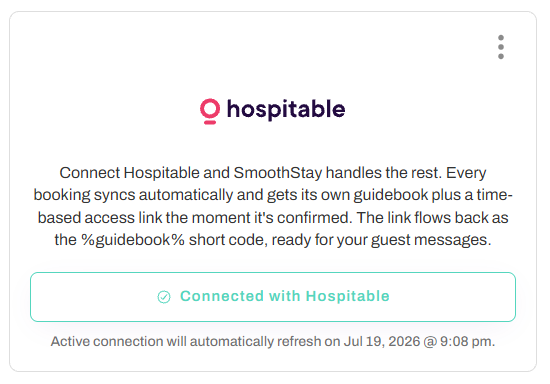
Your connection card then shows Connected with Hospitable, along with the date your connection will next refresh on its own. You don't need to do anything to keep it active.
Import your properties
When the wizard opens, SmoothStay shows every property it found in your Hospitable account and suggests what to do with each one.
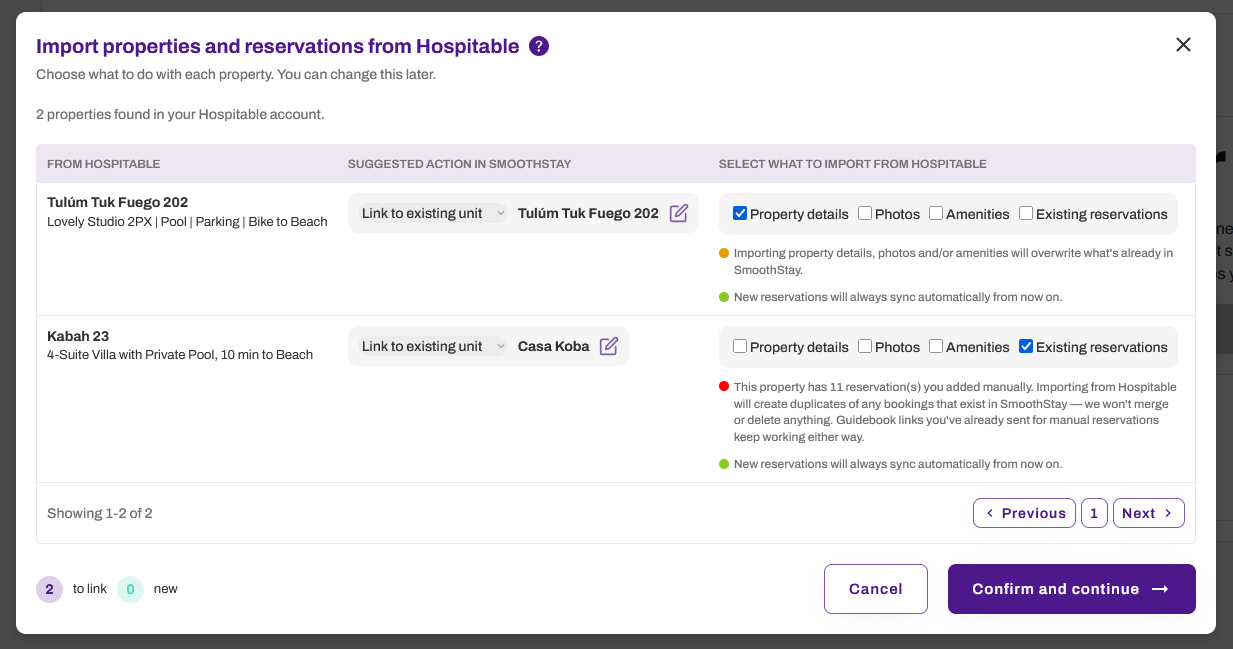
For each property you have three choices:
Create a new unit. SmoothStay builds a brand new unit and copies everything available from Hospitable: details, amenities, and photos.
Link to an existing unit. Use this when you've already set the property up in SmoothStay. SmoothStay matches it to the unit you pick, and you stay in control of what gets overwritten (see below).
Skip. Leave that property out for now. You can bring it in later with a resync.
Any new units are billed at your per-unit rate and added automatically to your monthly or annual subscription total.
If you link to an existing unit
Linking never overwrites your SmoothStay content unless you ask it to. Under Select what to import from Hospitable, tick only what you want pulled over:
Property details
Photos
Amenities
Anything you leave unchecked stays exactly as you have it in SmoothStay.
Choosing which reservations to import
For each property you also decide how far back to go.
Checking Existing reservations pulls in current and upcoming bookings from Hospitable and sends the
%guidebook%short code for those reservations; OR,Leave it unchecked and it starts the sync with new bookings only as they come in.
Either way, new bookings from Hospitable always sync automatically from that point on.
In case you have 11 or more properties, you will have to go through each page in the table.
When you're happy with your choices, click Confirm and continue. You can resync the import process later.
Once you confirm, importing runs in the background. It can take a few minutes depending on how many units and reservations you're bringing in.
Add or update properties later (Resync)
Added a new property in Hospitable, or want to change how one is matched? Open the ⋮ menu on your Hospitable connection card and choose Resync.
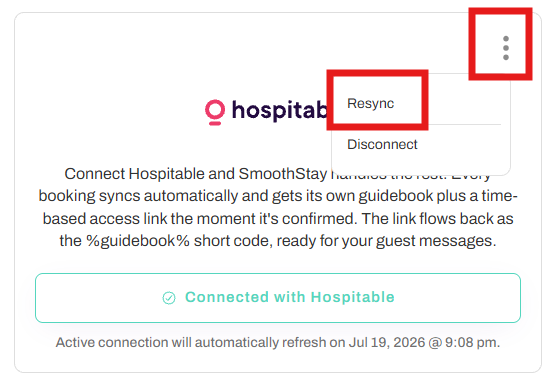
Resync reopens the same import wizard. Nothing changes until you review and confirm on the next screens.
Send guidebook links through Hospitable messages
This is the one piece that flows back to Hospitable, and it's what lets your guest get their guidebook automatically.
Before you start
As a fallback, we recommend adding each of your SmoothStay properties’ general share link to Hospitable under Properties → Details → Guidebook.
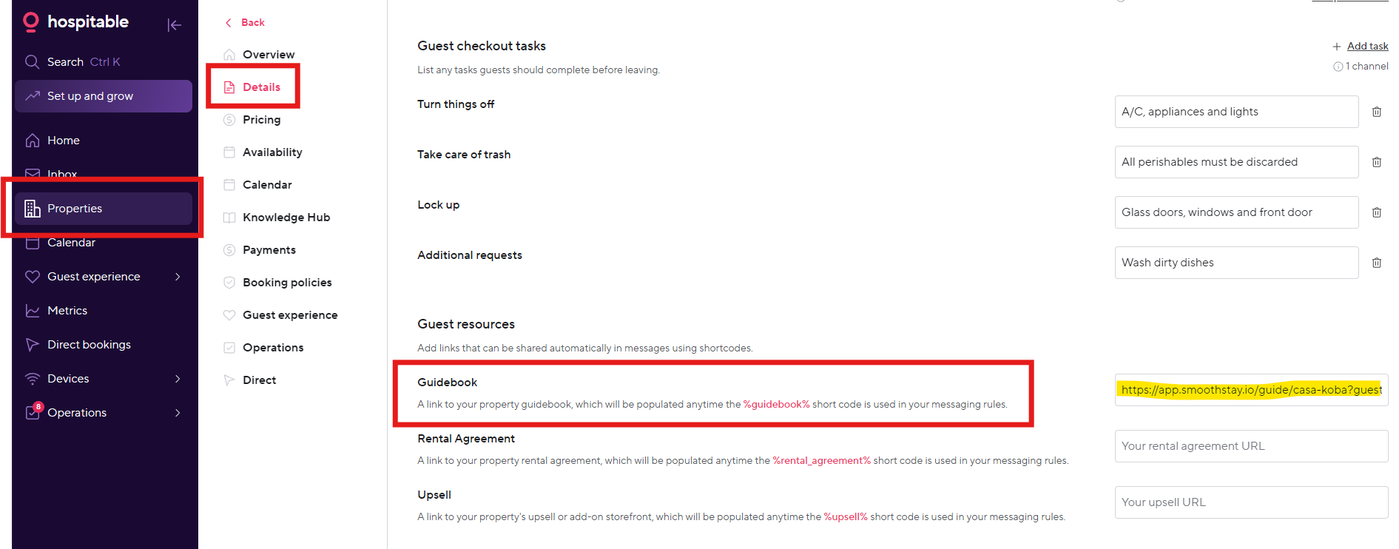
For automated messages or canned responses
Additionally to your property’s general share link, every reservation in SmoothStay has its own time-based reservation link. SmoothStay sends that link to Hospitable, where it becomes available through the %guidebook% short code. To use it:
In Hospitable, open Guest Experience → Messaging rules.
Add or edit a rule that sends after a booking is confirmed (you can also create a canned response with the short code
%guidebook%if you send a message manually).Put the
%guidebook%short code where you want the link to appear, and add a sentence around it so your guest knows what it is.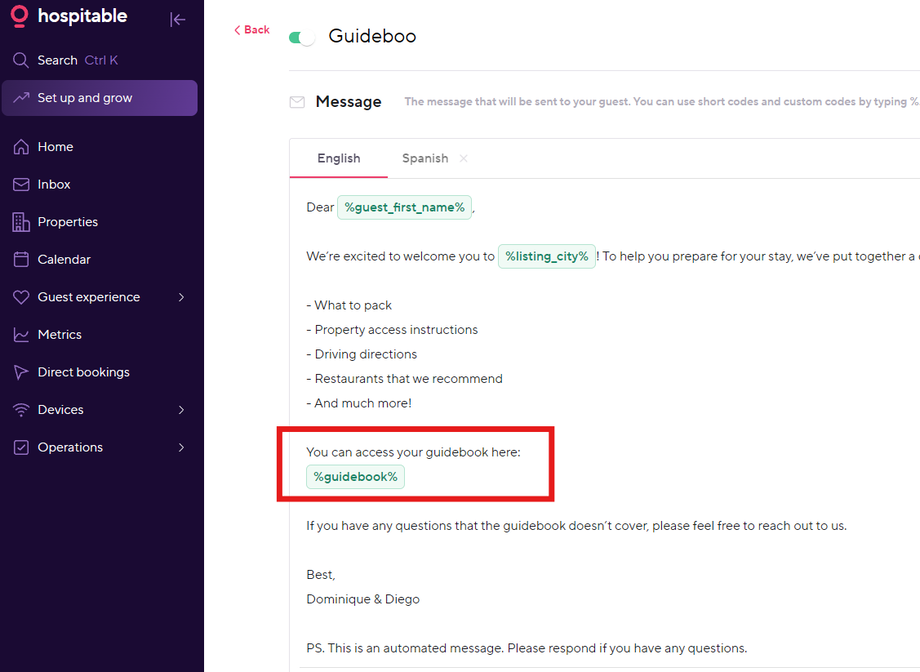
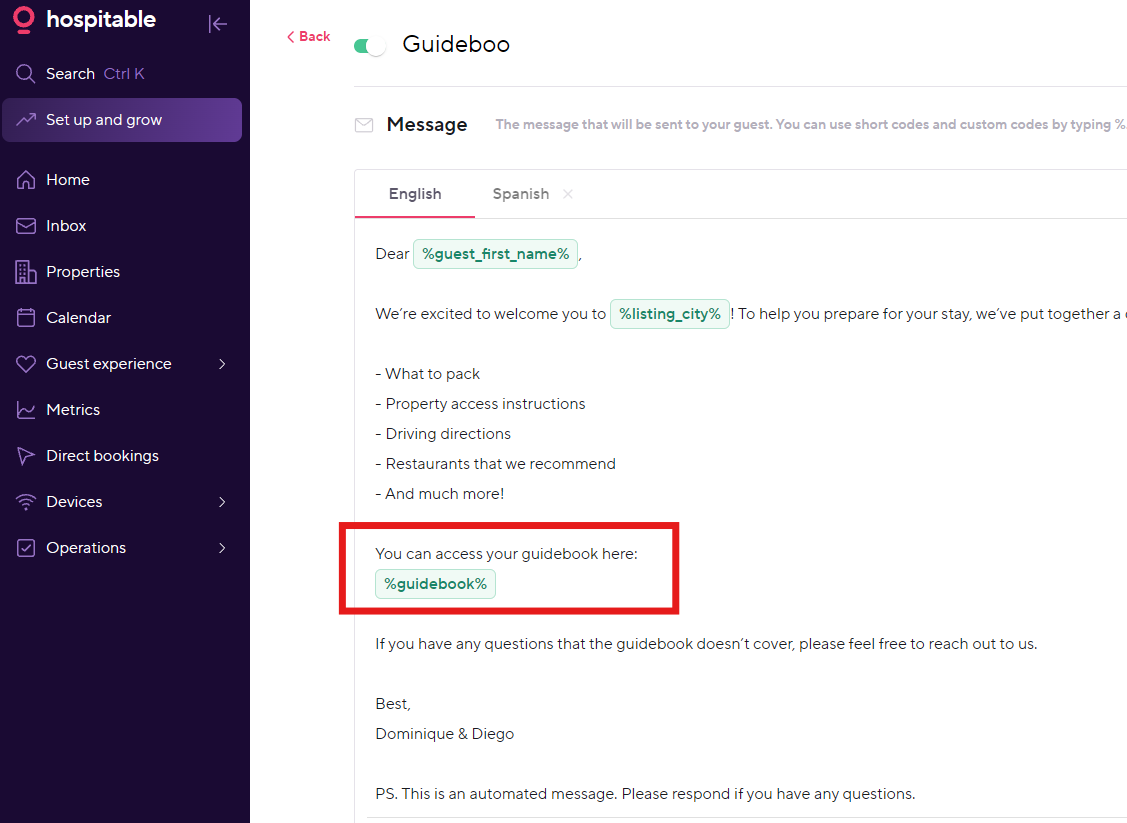
As per Hospitable guidelines, set the rule to send at least 5 minutes after the booking is confirmed. Hospitable needs a few minutes to generate the link. If your message goes out sooner, the short code can arrive empty.
A few things to know about the short code:
It only fills in on automated messages or previously saved canned responses. If add the short code
%guidebook%by hand it stays as plain text.It works on rules for bookings only, not inquiries.
It inserts the link itself, so write your own wording around it.
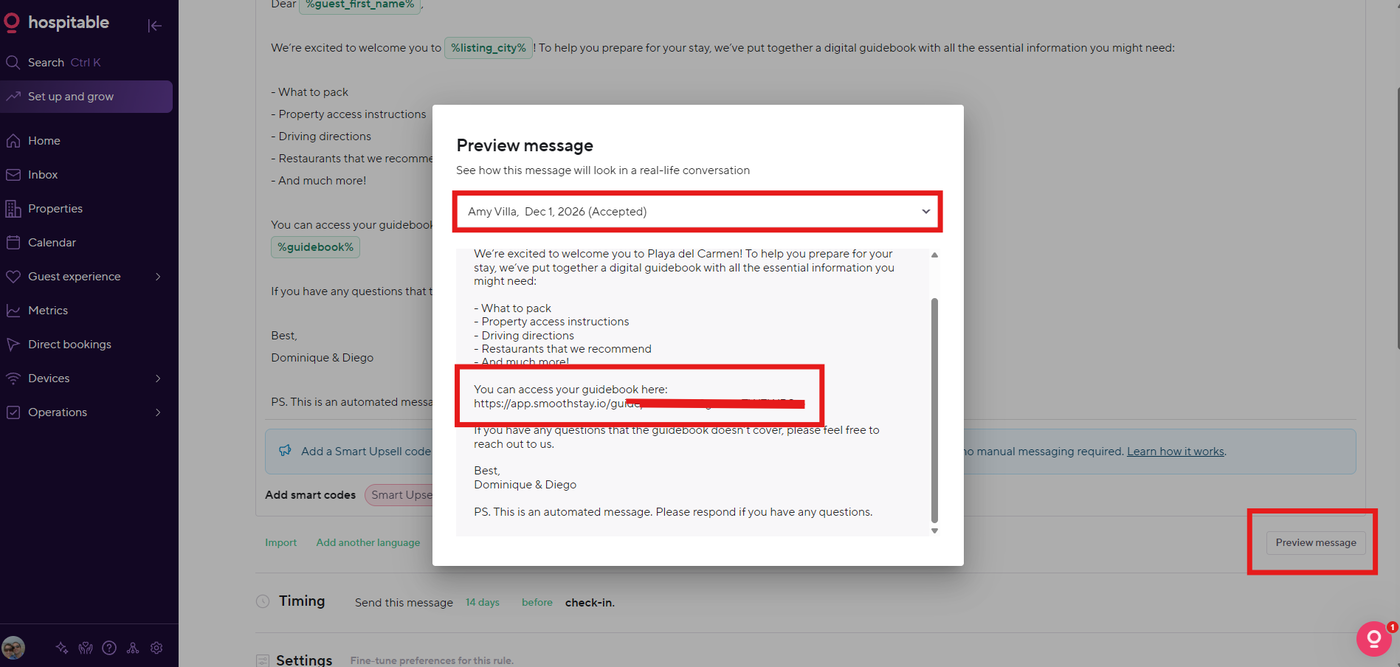
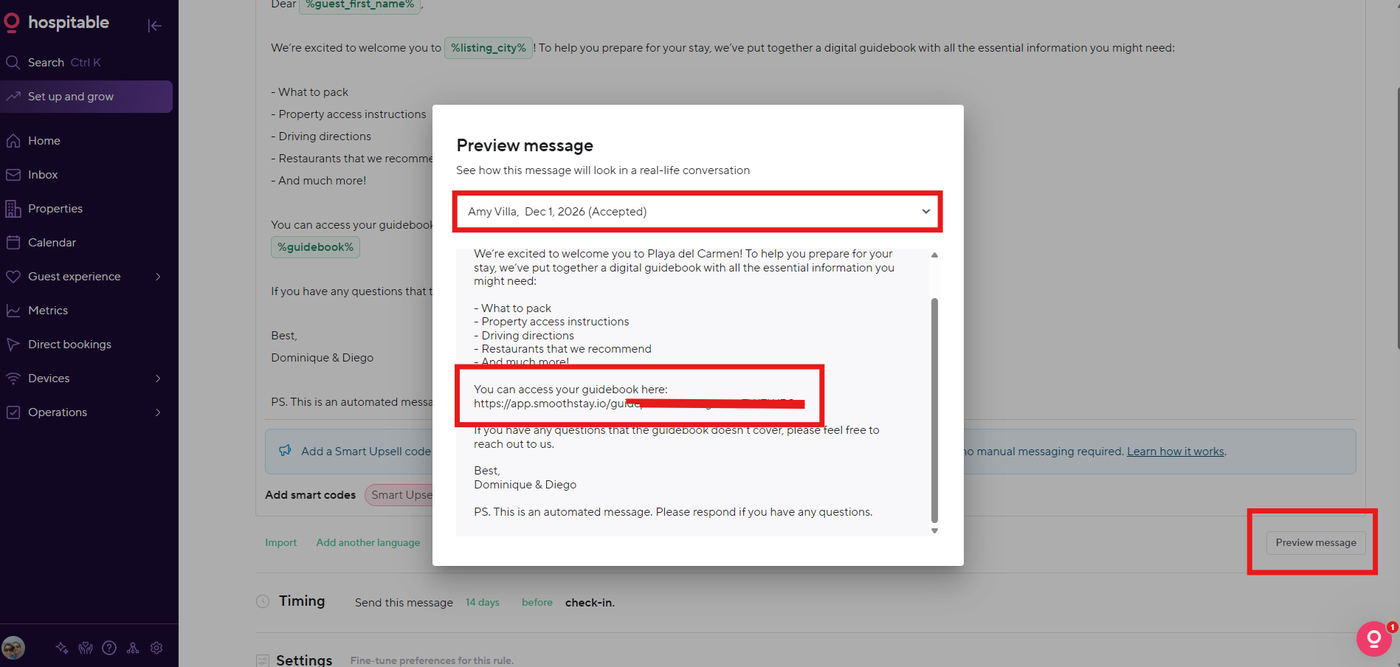
Especially at the start, preview your messages in Hospitable to confirm the short code is rendering. Open the messaging rule in Hospitable, click Preview message, and pick a real reservation from the dropdown. The %guidebook% line should show a full link. Compare it to that reservation's link in SmoothStay to confirm they match.
Advanced: link straight to a specific article
By default, %guidebook% opens the guest's guidebook to its home screen. If you'd rather send them straight to one article, like your exact arrival directions, you can point the link at that article using a deep link.
Every article in SmoothStay has its own deep link code and you can add to your Hospitable flow:
In SmoothStay, go to Content Hub → Articles and open the article you want to link to.
Click the share icon on that article.
In the share panel, look at the generated link. The part after
&DL=is your deep link code (for example,&DL=cartWRJHQN).Then, in Hospitable, add the full parameter and code (for example,
&DL=cartWRJHQN)right after the short code in your message template.
Now the link takes your guest directly to that article. In the example above, the guest lands on the exact directions to the property instead of the guidebook home.
Want to know more about deep links and everything you can point them at? See SmoothStay’s deep links to specific content.
You can also do this inside any Hospitable custom code. Give the custom code a clear name (the example uses PostalAddressK23), drop %guidebook%&DL=... into the text, and use that custom code in your messaging rules like any other.
Refer to Hospitable guidelines on how to use short codes and custom codes inside custom codes here.
Troubleshooting: if your Hospitable connection expires or disconnects
Connections refresh on their own every 12 hours as per Hospitable guidelines. If something interrupts that, your Hospitable card under Settings → Integrations will show Reset connection with a note that it couldn't refresh. Click Reset connection and authorize once more to get back up to date.
If your Hospitable connection drops, SmoothStay automatically tries to reconnect up to 4 times over the next hour. If it still can't reconnect, we'll email you so you can reset it manually. Our team gets notified at the same time and will look into it right away during business hours.
Checking your Hospitable connection in individual records
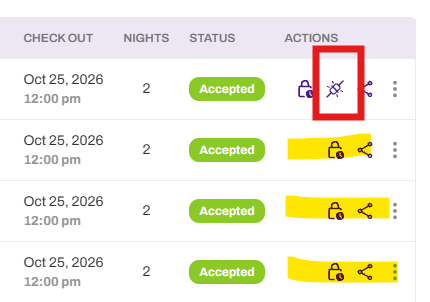
Units, contacts and reservations synced from Hospitable show a connection icon in the Actions column.
Purple: connected and syncing.
Yellow: the connection has expired or dropped.
Items you created directly in SmoothStay don't show this icon.
Re-sending the guidebook link for a reservation
If %guidebook% came through empty in a Hospitable automated message, you can push the link to Hospitable again:
Go to Reservations and find the reservation.
Click the share icon in the Actions column.
At the bottom of the Share guidebook window, click Re-send link to Hospitable.
Frequently asked questions
Does SmoothStay change anything in my Hospitable account?
No, aside from making your guidebook link available as the %guidebook% short code. Your reservations, guest details, and property settings in Hospitable are never edited by SmoothStay.
Will importing create duplicate reservations?
Only if you import existing reservations for a property where you already added those same bookings by hand. If you've been entering reservations manually, choose Don't import for that property and let new bookings sync going forward. Reservations already imported from Hospitable are never duplicated.
Can I edit reservation details in SmoothStay?
Details that come from Hospitable, including notes and issues, are managed in Hospitable and locked in SmoothStay. Edit them in Hospitable and the change flows to SmoothStay. SmoothStay-only fields, like the smart lock code, stay yours to edit anytime.
Can I disconnect?
You disconnect from the Hospitable side:
Open your Hospitable dashboard.
Go to Settings → Tools → Connected integrations.
Find SmoothStay and click Remove access.
What happens after you disconnect?
New Hospitable bookings will stop syncing to SmoothStay. Reservations and contacts already imported stay in SmoothStay. The %guidebook% short code will stop updating with new links. Any message rule still using it will send an empty or outdated link, so remove %guidebook% from your Hospitable message rules, or replace it with a direct guidebook URL, before your next booking goes out.
Do I need to keep the connection alive manually?
No. It refreshes on its own. You only need to step in if you see a Reset connection prompt.